Auto Call Detection on Android — How It Works
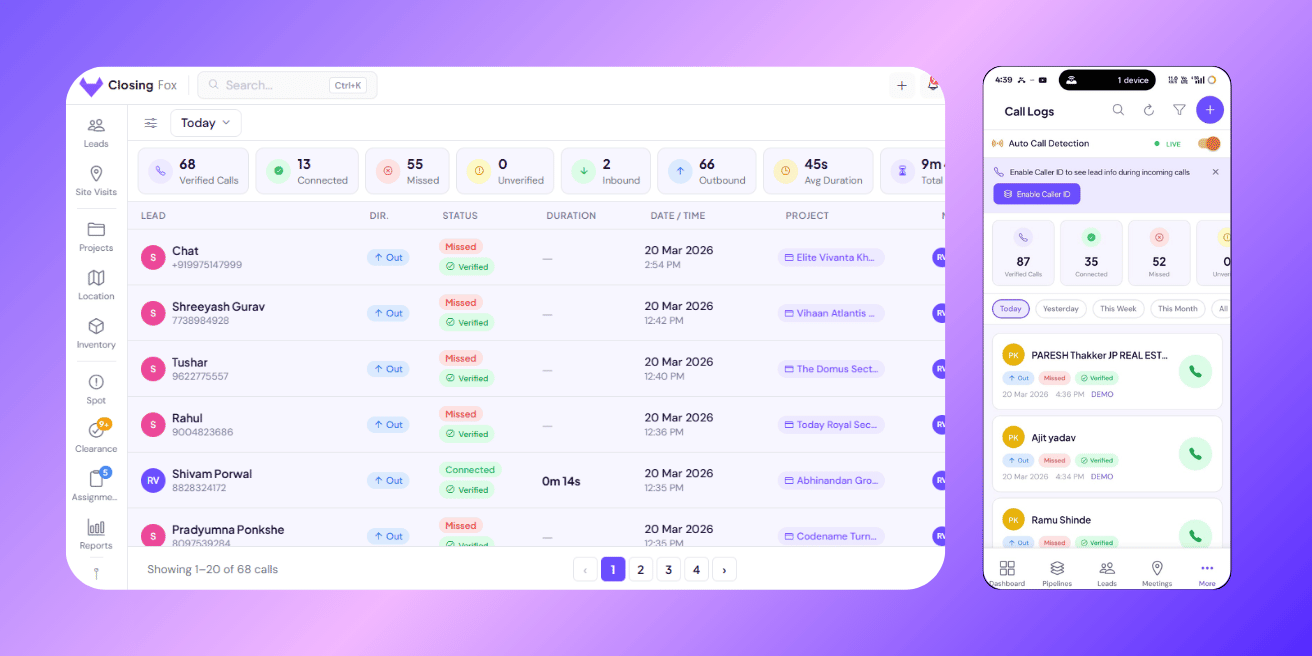
ClosingFox automatically logs every call your team makes — duration, direction, and outcome. No manual entry. Works in the background on Android.
How it works
- Your salesperson makes a call from their Android phone — using the normal dialer.
- ClosingFox detects the call automatically in the background.
- If the phone number matches a lead — the call is logged instantly. No tapping needed.
- If the number doesn’t match — it goes to Pending Calls for quick linking.
Turn it on
Step 1: Open Settings in ClosingFox. Step 2: Go to Permissions → Call Duration Tracking. Step 3: Tap Allow. Android will ask for two permissions:| Permission | Why it’s needed |
|---|---|
| Phone State | Detects when a call starts and ends |
| Call Log | Reads the call duration and phone number |
What gets logged
Every call captures:- Who was called — matched to the lead automatically
- Duration — how long they actually talked (e.g., “2m 35s”)
- Direction — incoming or outgoing
- Connected or Missed — did someone pick up?
- When — exact date and time
- Who made the call — which team member
How calls are matched to leads
ClosingFox compares the phone number from the call against all your leads’ phone numbers. It handles every Indian format:- +91 98765 43210 ✓
- 09876543210 ✓
- 98765-43210 ✓
- (022) 2345 6789 ✓
Pending Calls
Open Call Logs — pending calls show as a banner at the top. For matched calls: Tap Confirm to save. For unmatched calls: Tap Confirm as [Lead] and pick the right lead. Don’t need it? Tap Dismiss. > Tip: Use “Confirm All Matched” to batch-confirm all matched calls at once. Saves time if you made 20 calls today.The 3-Tap Disposal (after every call)
After confirming a call, ClosingFox asks 3 quick questions: Tap 1: What happened?- Connected
- No Answer
- Busy
- Callback Needed
- Wrong Number
- Switched Off
- Schedule a callback
- Interested — move to next stage
- Schedule a site visit
- Not interested — move to Lost
- Send details — follow up tomorrow
Caller ID (know who’s calling)
When a lead calls you, ClosingFox shows their info right on your screen:- Lead name
- Current stage (Fresh, Negotiation, etc.)
- Project they’re interested in
- Follow-up status
Connection Ratio — your team’s real performance
The connection ratio shows what percentage of calls actually connected:Example: 10 calls made. 7 answered. 3 missed. Connection ratio = 70%.
This appears in:- Call Logs header
- Each lead’s detail card
- Dashboard stats
- Reports
Does it work on iPhone?
| Platform | Auto Detection | Caller ID |
|---|---|---|
| Android | ✓ Yes | ✓ Yes |
| iPhone | ✗ No | ✗ No |
| Web | ✗ No | ✗ No |
Apple doesn’t allow third-party apps to access call data. This is an iOS restriction, not a ClosingFox limitation. On iPhone, you can still log calls manually using the “Log Call” button.
Common questions
Does it drain my battery?
No. ClosingFox uses Android’s built-in call log — it doesn’t actively listen or poll. Battery impact is minimal.
What if I denied the permissions earlier?
Go to your phone’s Settings → Apps → ClosingFox → Permissions → enable Phone and Call Log manually.
Can my manager see my calls?
Yes — that’s the point. Managers see all team calls in Call Logs and Reports. This creates accountability and helps them coach you on improving your connect rate.
What if I call a number not saved as a lead?
The call goes to Pending. You can link it to an existing lead or dismiss it. Nothing is lost.