Setting Up Assignment Rules — Round-Robin, Escalation & More
Auto-assign leads to your team with round-robin, escalation, or broadcast rules. No lead sits unattended — ClosingFox routes them in under 2 seconds.
How it works (30 seconds)
- A lead arrives from 99acres, Housing, Facebook, or any source.
- ClosingFox checks your rules: “Is this lead from Navi Mumbai? Is the source 99acres?”
- First matching rule wins. The lead goes to the right person instantly.
- No rule matches? Lead goes to the Pending Queue for manual assignment.
Create your first rule
Open Assignment from the sidebar. Tap + New Rule. Step 1: Name it Use a name your team will recognize. Examples:- “99acres — Mumbai West”
- “Housing.com — High Budget”
- “Facebook Ads — Thane”
| Filter by | Example |
|---|---|
| Source | 99acres, Housing.com, Facebook |
| Location | Seawoods, Thane, Navi Mumbai |
| Project | Lodha Palava, Godrej Reserve |
| Campaign | March-2BHK-Campaign |
| Budget | 50L+, 1Cr+ |
| Config / BHK | 2 BHK, 3 BHK |
| URL contains | landing-page-name |
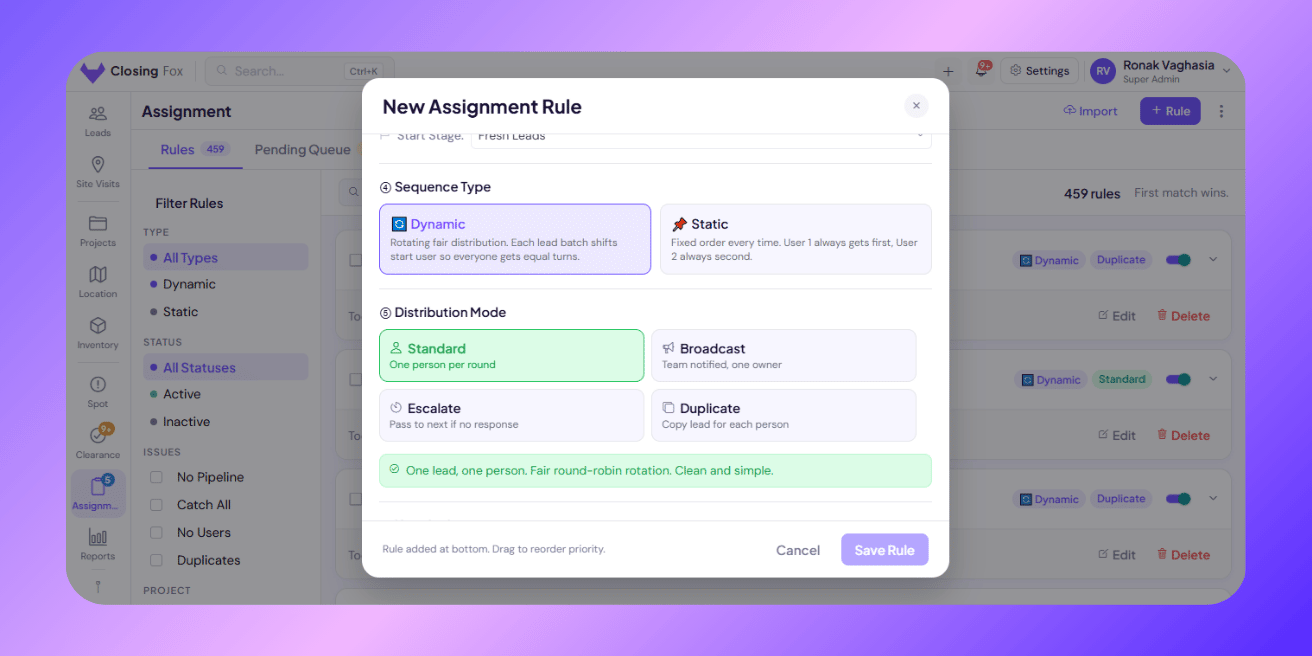
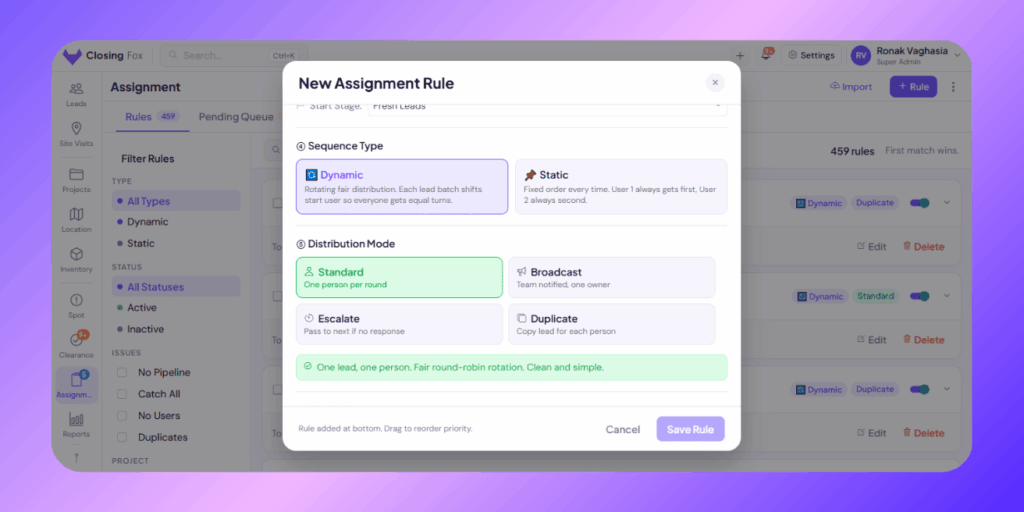
Option 1: Round-Robin (recommended for most teams)
Leads rotate fairly across your team.Lead 1 → Kabir. Lead 2 → Sonali. Lead 3 → Priyanka. Lead 4 → Kabir again.
Everyone gets equal leads over time. No favoritism. No cherry-picking. > Business Impact: Round-robin eliminates the “loudest person gets the best leads” problem. Every team member gets fair shots. Teams using fair distribution see 40% less attrition — because nobody feels the system is rigged.Option 2: Escalation (for speed-critical leads)
Lead goes to Person 1. If they don’t act within your time limit — it moves to Person 2. Then Person 3.Example: Lead → Kabir (now). No action in 7 minutes? → Sonali. Still nothing in 7 more minutes? → Priyanka.
Nobody falls through the cracks. If one person is busy, the next picks it up. > Business Impact: Without escalation, a single person on lunch break means a hot lead waits 45 minutes. With escalation, the maximum wait is your configured timeout (e.g., 7 minutes). Every lead gets contacted fast.Option 3: Broadcast (everyone gets notified)
All team members see the lead. One person owns it in the pipeline. Good for: competitive teams, high-value leads, or when you want everyone aware.Option 4: Duplicate (independent copies)
Each person gets their own copy of the lead to work independently. Good for: joint ventures, CP referrals, or when multiple people need to work the same prospect separately. Step 5: Add your team members Pick who gets leads from this rule. For escalation, set the wait time between each person. Step 6: Save Tap Save. The rule is live immediately. Next lead that matches will be auto-assigned.Managing pending leads
Leads that don’t match any rule land in the Pending Queue. You have two options: Option A: Assign manually — pick the lead, choose a person, done. Option B: Create a new rule — select the pending leads, tap Create Rule, set conditions. The rule applies immediately AND catches future similar leads. > Tip: If your Pending Queue keeps growing, your conditions are too narrow. Create a “catch-all” rule at the bottom of your list to grab everything else.Real examples
Example 1: City-based team split
Rule: “Mumbai West”
Conditions: Location contains “Andheri” OR “Bandra” OR “Juhu”
Distribution: Round-robin
Team: Kabir, Sonali, Priyanka
Rule: “Navi Mumbai”
Conditions: Location contains “Kharghar” OR “Panvel” OR “Seawoods”
Distribution: Round-robin
Team: Namira, Deepak
Each city team gets only their area’s leads. Fair rotation within each team.
Example 2: High-value lead escalation
Rule: “Premium Prospects”
Conditions: Budget contains “1Cr” OR “2Cr”
Distribution: Escalation
Chain: Senior Closer (now) → Team Lead (15 min) → Director (30 min)
High-budget leads get VIP treatment. If the closer is busy, it escalates fast.
Example 3: Source-based routing
Rule: “99acres Leads”
Conditions: Source = “99acres”
Distribution: Round-robin
Team: Full sourcing team (5 people)
Rule: “Facebook Ads”
Conditions: Source = “Facebook”
Distribution: Escalation (7 min)
Team: Ad specialist → Closer → Manager
Portal leads go to the sourcing team. Paid ad leads get escalation because you’re paying per click.
Troubleshooting
Leads keep going to the same person
Check if the rule is set to Static instead of Dynamic. Static always starts with Person 1. Switch to Dynamic for fair rotation.
Leads landing in Pending instead of being assigned
Your conditions don’t match the incoming data. Check what the portal sends (source name, location spelling) and adjust your conditions. Or add a catch-all rule at the bottom.
Wrong leads being caught by a rule
Rule order matters — first match wins. If a broad rule is above a specific one, it catches leads first. Drag your most specific rules to the top.
Escalation not working
Make sure Person 2 and 3 have a delay set (e.g., 7 minutes). If delay is 0, everyone gets it at the same time (that’s broadcast, not escalation).