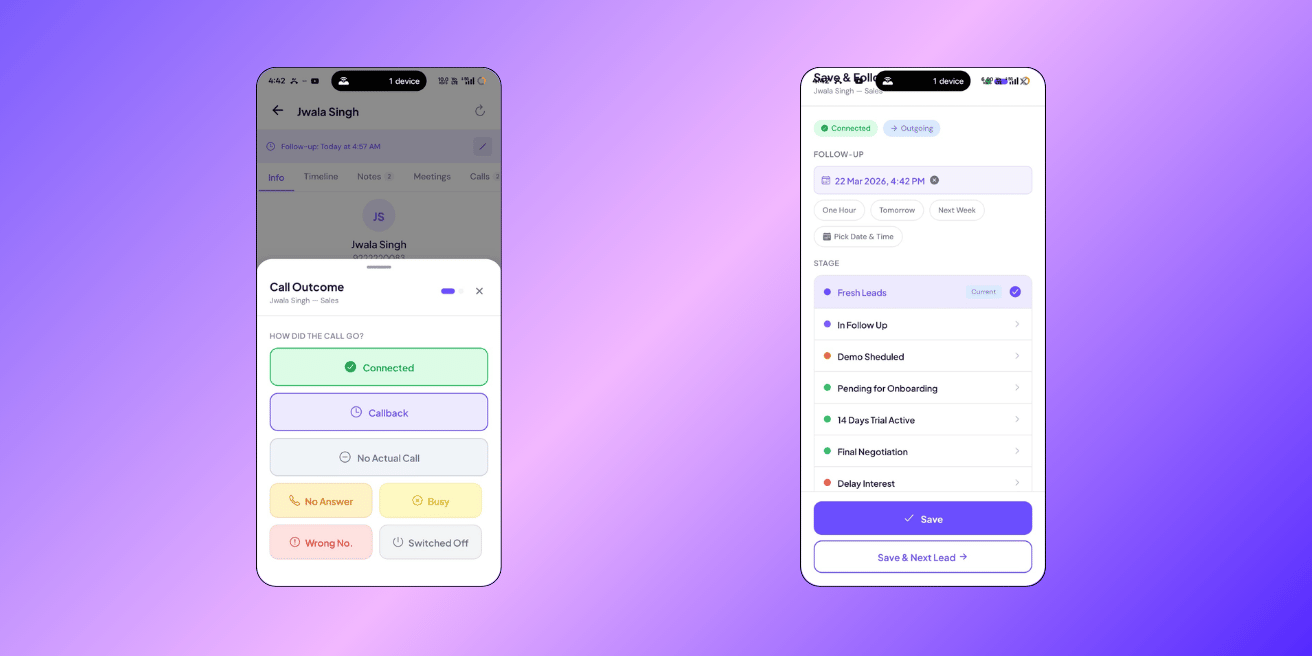
The 3-Tap Disposal Flow — Log Calls in 5 Seconds
After every call, 3 taps: what happened, what's next, save. Every call logged, every follow-up scheduled, nothing forgotten.
How it works
After a call ends (detected automatically on Android), a sheet slides up from the bottom: Tap 1 — What happened? Pick one:- Connected — you spoke to the customer
- Callback — they asked you to call later
- No Answer — phone rang, nobody picked up
- Busy — line was busy
- Wrong Number — not the right person
- Switched Off — phone was off
- Call back in 1 hour / tomorrow / next week — quick date chips
- Custom date — pick any date and time
- Move to next stage — if the lead is progressing
- Schedule a site visit — opens the visit scheduler
- Not interested — moves to Lost (may need manager approval)
Smart follow-up dates
You don’t need to think about when to follow up. ClosingFox sets it automatically based on what happened:| Outcome | Auto follow-up | Why |
|---|---|---|
| Connected | +2 days | Give them time to think, then check in |
| Callback | +1 day | They asked you to call back |
| No Answer | +4 hours | Try again the same day |
| Busy | +4 hours | Try again soon |
| Wrong Number | None | Lead is flagged — won’t call again |
| Switched Off | None | Lead is flagged — won’t call again |
What gets saved
One tap saves everything at once:- Call log — date, time, duration, connected/missed, who called
- Outcome — Connected, No Answer, Busy, etc.
- Follow-up reminder — you’ll get a notification on your phone when it’s time
- Stage movement — if you moved the lead forward
- Notes — what you discussed (also appears in the lead’s Notes tab, so you can review all conversation summaries in one place)
Follow-up reminders
When a follow-up is due, you’ll see it in three places:- Phone notification — a push alert at the scheduled time (works offline)
- Dashboard — “Overdue Follow-ups” and “Due Today” counts at the top
- Spot alerts — if you miss a follow-up, Spot flags it in red
What happens if you miss a follow-up?
ClosingFox doesn’t let it slide:| Situation | Alert | Urgency |
|---|---|---|
| Follow-up was yesterday, zero calls made | “FU Day, No Call” | High (orange) |
| Follow-up is today, only 1 short call made | “FU — Single Attempt” | Medium (yellow) |
| Follow-up is 1+ days overdue | “Overdue Follow-Up” | Critical (red) |
| Active lead, no follow-up set at all | “No Follow-Up Set” | Critical (red) |
“Wrong Number” and “Switched Off” — what happens
When you mark a call as Wrong Number or Switched Off:- The lead gets flagged with a red badge
- No follow-up is created (no point calling again)
- The flag prevents accidental re-calling
- Your manager can clear the flag if the number gets corrected
“Not Interested” — clearance flow
When you mark a lead as Not Interested:- ClosingFox asks for a reason (Budget issue, Not qualified, Competition, etc.)
- If your pipeline requires manager approval — a clearance request is sent
- Your manager reviews and approves or rejects
- Only after approval does the lead move to Lost
Without a call (follow-up only)
Need to set a reminder without making a call? Tap the disposal button and select “No Actual Call”. You can:- Set a follow-up date
- Add notes
- Move the lead to a different stage
Common questions
Do I have to fill disposal after every call?
It’s strongly recommended. Without disposal, the lead has no follow-up and will eventually be flagged as “No Follow-Up Set” in Spot alerts. It takes 5 seconds — just pick the outcome and save.
Can I edit a disposal after saving?
You can change the follow-up date anytime from the lead detail screen. The call outcome and notes are saved permanently in the lead’s history — you can always see what happened on each call.
What if I made a call but the disposal sheet didn’t appear?
Go to Call Logs → Pending Calls. Your call should be there. Tap it to confirm and fill the disposal.
Can my manager see my disposals?
Yes. Every disposal is visible in Call Logs and the lead’s timeline. This is by design — it creates accountability and helps managers coach their team.