◆ Getting Started
Inviting Your Team — Users, Profiles & Roles
Add your team to ClosingFox, set permissions with profiles, and control who sees whose leads with roles. Set up in 5 minutes.
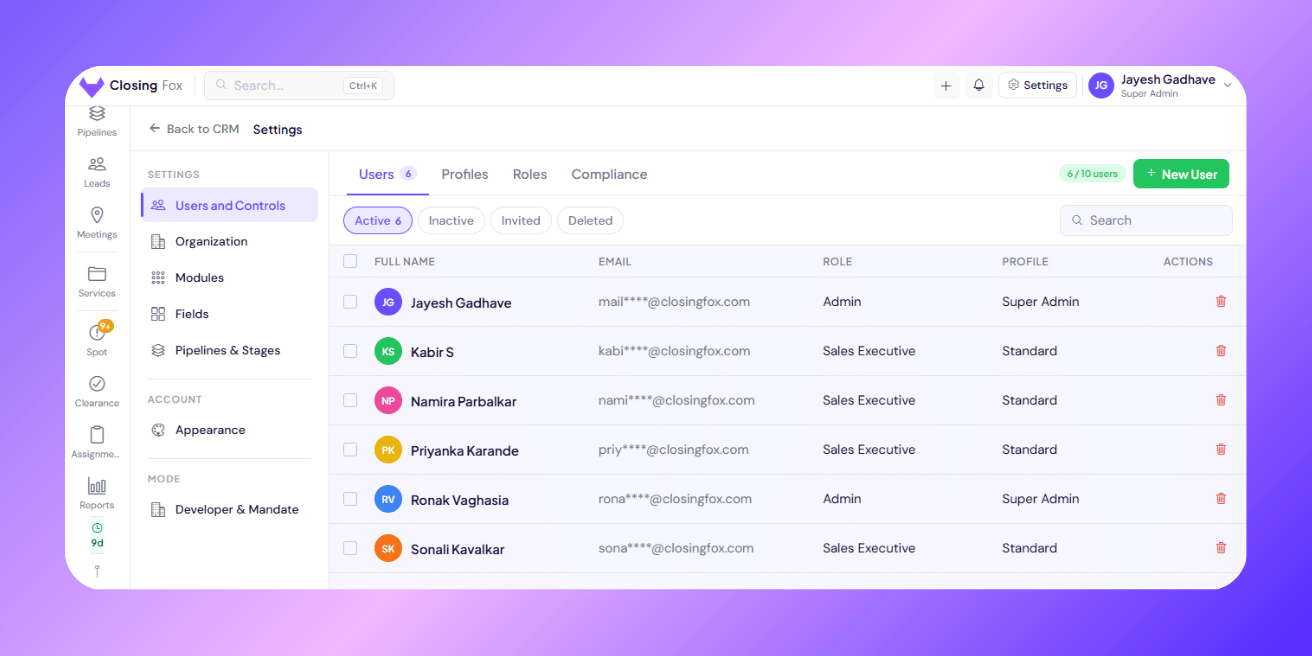
Add a team member
Step 1: Open Users & Access from the sidebar. Step 2: Tap + New User. Step 3: Fill in the basics:- First Name and Last Name
- Email — this is their login ID
- Password — minimum 6 characters (they can change it later)
- Profile — what they’re allowed to do (see below)
- Role — where they sit in your team hierarchy
Profiles — what each person can do
A profile controls permissions. Pick the one that matches the person’s job:| Profile | Best for | What they can do |
|---|---|---|
| Super Admin | Owner / Founder | Everything. Full control over all modules and settings. |
| Administrator | Operations Manager | Same as Super Admin. Manages team and pipelines. |
| Site Head | Project site manager | Manages contacts, inventory, site visits, projects. Can approve clearance. |
| Closing Manager | Sales closer | Leads, site visits, calls, pipeline. Phone numbers masked for privacy. |
| Sourcing Manager | Lead sourcing team | Contacts, channel partners, calls. Limited lead visibility. |
| Standard | Regular sales rep | View and edit leads, log calls, schedule visits. No admin access. |
| Reception Desk | Front desk | Create contacts only. No pipeline or inventory access. Phone masked. |
| In House Reception | In-house reception + SM desk | Contacts, calls, site visits. Limited lead edit. Good for shared front-desk and sourcing teams. |
| Developer Team | Builder/vendor team | Inventory only. No lead access. Phone and email masked. |
Roles — who sees whose leads
Roles create your reporting structure. A user can only see leads of people below them in the hierarchy. Example:Owner (sees everyone) ├── Team Lead — Mumbai (sees Mumbai team only) │ ├── Salesperson A (sees only their own leads) │ ├── Salesperson B │ └── Salesperson C └── Team Lead — Pune (sees Pune team only) ├── Salesperson D └── Salesperson ECreate a role
Step 1: Go to the Roles tab. Step 2: Tap + Create New Role. Step 3: Enter the name (e.g., “Team Lead”). Step 4: Set Reports To — pick the parent role. Leave blank for top-level. Step 5: Save. > Tip: You can insert roles between existing levels. Create the new role, then edit the role below it to change its “Reports To” to the new role.The difference between Profile and Role
People often confuse these. Here’s the simple version:| Profile | Role | |
|---|---|---|
| Controls | What you can do | What you can see |
| Example | “Can create leads, edit pipelines” | “Can see Mumbai team’s leads” |
| Set by | Admin picks a profile | Admin assigns a role |
| Sharing | Multiple users share one profile | Multiple users can have the same role |
Deactivating a team member
When someone leaves your team: Step 1: Find them in the Users list. Tap the delete icon. Step 2: If they own leads, ClosingFox asks: reassign to someone else or leave unassigned. Step 3: Confirm. The user is moved to the Deleted tab. Their account is deactivated (can’t log in), but all their data stays. You can restore them anytime from the Deleted tab. > Tip: Always deactivate instead of deleting permanently. This frees up a seat while keeping the history intact.Changing passwords
As an admin, for a team member:- Open their profile in Users & Access
- Tap Change Password
- Enter the new password (6+ characters)
- Save
- Open their profile
- Tap Send Reset Email
- They receive a link to set a new password
Common questions
Can two people have different profiles but the same role?
Yes. Example: A Closing Manager and a Sourcing Manager can both have the “Sales Executive” role (same visibility), but different profiles (different permissions).
What if I hit my user limit?
Deactivate unused accounts to free seats. Or contact us to upgrade your plan for more users.
Can a user see leads of someone at the same level?
No. Users at the same role level only see their own leads. Only users above them in the hierarchy see their leads.
What if I change someone’s role?
Their visibility changes immediately. If you move them higher, they see more leads. Lower, they see fewer. Their existing leads stay with them.