◆ Getting Started
GPS Site Visit Tracking — Schedule, Track & Prove
Schedule property visits, track them with GPS, and record client feedback. Every visit has proof — start location, end location, time spent.
How site visits work
- Schedule — pick a lead, project, date, time, and visit type
- Start — tap “Start Visit” when you arrive. GPS captures your location.
- Visit — show the property. Timer runs in the background.
- End — tap “End Visit”. GPS captures again. Rate the client’s interest. Add notes.
Schedule a visit
Step 1: Open Site Visits. Tap + Schedule Visit. Step 2: Search and select the lead. Step 3: Select the project (which property to show). Step 4: Pick the date — Today, Tomorrow, or a custom date. Step 5: Pick the time — quick slots (10 AM, 11 AM, 2 PM, etc.) or custom. Step 6: Choose the visit type:- Fresh Visit — first time showing the property
- Re-Visit — follow-up visit after initial feedback
- Final Walk — closing walkthrough before booking
Start a visit (GPS check-in)
When you arrive at the site: Step 1: Open the scheduled visit. Tap Start Visit Now. Step 2: Allow location access when prompted. Step 3: GPS captures your exact position — latitude, longitude, and accuracy. The timer starts. You’ll see:- Elapsed time (updating live)
- Start location with accuracy (e.g., “±8 meters”)
- Lead and project details for quick reference
End a visit (GPS check-out)
When the visit is done: Step 1: Tap End Visit & Save. Step 2: GPS captures your end location. Step 3: Rate the client’s experience (required):| Rating | Meaning | Typical next step |
|---|---|---|
| ⭐⭐⭐⭐⭐ | Very Interested | Move to Booking Ready |
| ⭐⭐⭐⭐ | Interested | Schedule follow-up or re-visit |
| ⭐⭐⭐ | Needs Follow-Up | Call back with more details |
| ⭐⭐ | Price Concern | Send offers or alternate options |
| ⭐ | Not Interested | Consider different project |
What GPS captures
At both start and end, ClosingFox records:- Exact coordinates (latitude + longitude)
- Accuracy — how precise the reading is (±5m to ±50m depending on signal)
- Timestamp — exact time of check-in and check-out
Visit tags — share with your team
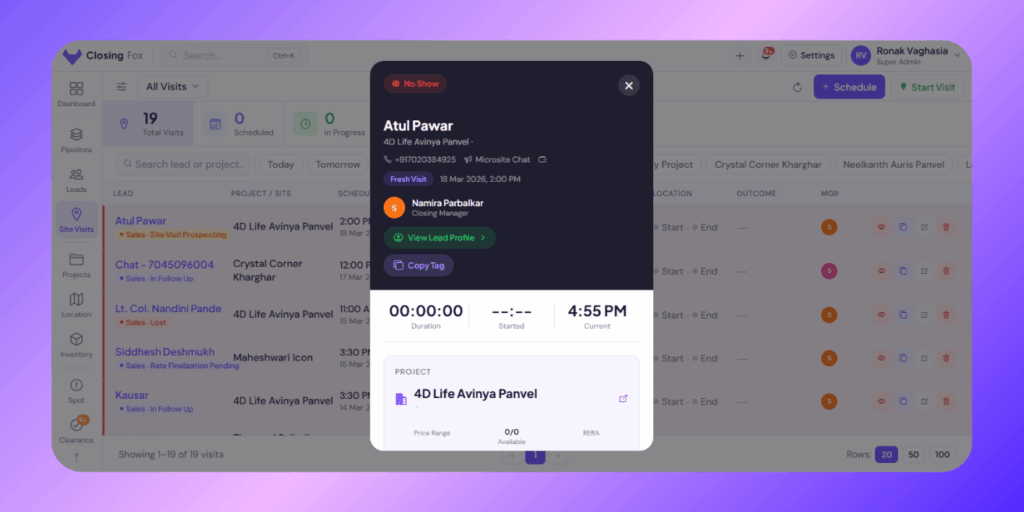
After completing a visit, tap Copy Tag to get a formatted summary:Lead: Rajesh Kumar | Project: Lodha Palava Date: 20 Mar 2026 10:00 AM | Type: Fresh Visit Manager: Ravi Kumar | Duration: 45 min Outcome: Very Interested Notes: Lead liked Tower A, budget confirmed ₹80L Start: 19.1968, 73.2146 ± 8m End: 19.1969, 73.2147 ± 6mWhat managers see
The Site Visits screen shows 4 stats at the top:- Scheduled — visits coming up
- Active — visits happening right now (someone is at a site)
- Completed — done with outcome recorded
- Missed / No Show — visit time passed but nobody started it
- Rescheduled — moved to a different date/time
Tips for best results
For salespeople:- Start the visit when you arrive, not before. GPS should show the actual site location.
- Enable location services before tapping Start — avoids the “permission denied” delay.
- Add specific notes: “Wants 2BHK high floor, Tower A, budget ₹80-85L” is useful. “Visit done” is not.
- Rate honestly — it helps your manager make the right call on next steps.
- Check GPS coverage — if visits consistently have no GPS, investigate why.
- Monitor visit duration — under 15 minutes is suspiciously short for a property visit.
- Review outcomes daily — “Very Interested” leads should be moved to Booking Ready immediately.
- Compare scheduled vs completed — if the gap is growing, your team isn’t executing.
Common questions
What if GPS doesn’t work at the site?
You can start and end without GPS. The visit still tracks time, notes, and outcome. GPS is optional but recommended for accountability.
Can I reschedule a visit?
Yes — tap the visit and choose Reschedule. Pick a new date and time. The visit status changes to “Rescheduled” so your manager can see it was moved, not cancelled.
Do visit notes appear on the lead’s profile?
Yes. Pre-visit and post-visit notes are automatically synced to the lead’s timeline. Your team sees the full history without switching screens.
Can I schedule visits for other team members?
On desktop, yes — pick any active user as the Closing Manager. On mobile, visits are assigned to you automatically.