How to Import Your Leads and Start Working in 30 Minutes
Import your existing leads into ClosingFox in 5 minutes. Paste from Excel, map columns, click Import. Start calling in 30 minutes.
Before you start
You need just 2 things:
- Your leads in Excel or Google Sheets (any format works)
- ClosingFox open on your computer (desktop works best for import)
Heads up: Bulk import works on desktop (web browser). Mobile import is coming soon.
Step 1: Open the import screen
- Open app.closingfox.com on your computer
- Click Leads in the sidebar
- Click the + Import button (top right)
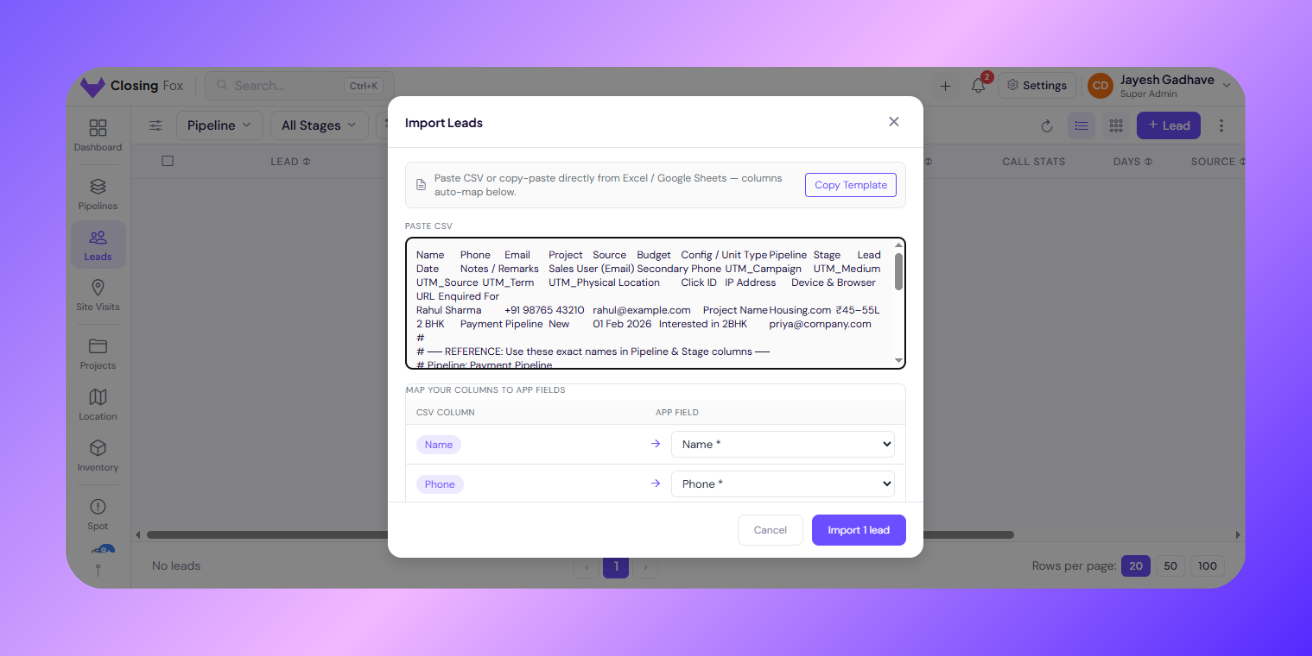
- A popup opens — this is your import screen
Step 2: Download the template
- Click Download Template in the popup
- A CSV file downloads to your computer
- Open it in Excel or Google Sheets
The template has these columns:
| Column | Required? | Example |
|---|---|---|
| Name | Yes | Rahul Sharma |
| Phone | Yes | +91 98765 43210 |
| No | rahul@gmail.com | |
| Project | No | Prestige Lakeside |
| Source | No | 99acres |
| Budget | No | ₹85L |
| Config | No | 2 BHK |
| Pipeline | No | Sales Pipeline |
| Stage | No | Fresh Leads |
| Lead Date | No | 01 Feb 2026 |
| Notes | No | Interested in lake view |
| Sales User (Email) | No | priya@company.com |
Pro tip: Only Name and Phone are required. Everything else is optional. Start simple — you can always add details later.
Step 3: Paste your leads
- Open your existing Excel/Google Sheet with leads
- Copy the rows (Ctrl+C)
- Go back to the ClosingFox import popup
- Paste into the text area (Ctrl+V)
- Click Next
ClosingFox shows you a preview of what it found. Check:
- Are the names in the right column?
- Are the phone numbers correct?
- If something looks wrong, go back and fix your sheet
Step 4: Map your columns
If your Excel has different column names (like “Contact” instead of “Name”), ClosingFox asks you to match them.
- For each column, pick the matching ClosingFox field from the dropdown
- If a column doesn’t match anything, select Skip
- Click Next
Pro tip: If you use the downloaded template, columns match automatically. No mapping needed.
Step 5: Import!
- Click Import
- Wait a few seconds (even 500 leads take under 10 seconds)
- You’ll see: “Imported 150 leads”
- Your leads are now in ClosingFox!
What happens automatically after import
Once your leads are imported, ClosingFox does these things for you — no extra work:
| What | How |
|---|---|
| Pipeline placement | Every lead goes into your pipeline at the stage you picked (or “Fresh Leads” by default) |
| Project matching | If your CSV has a “Project” column, ClosingFox matches it to existing projects. New project names? It creates them automatically. |
| Owner assignment | If your CSV has a “Sales User (Email)” column, leads get assigned to that team member. Otherwise, they’re assigned to you. |
| Follow-up created | Every imported lead gets a follow-up set for today. So your team knows to call them right away. |
| Phone deduplication | Same phone number twice? ClosingFox catches it and skips the duplicate. |
| Notes imported | If you have a “Notes” column, those notes appear in the lead’s activity. Use | to separate multiple notes. |
Limitations to know
| Limitation | What it means |
|---|---|
| 5,000 leads max per import | If you have more, split into 2 batches |
| Desktop only | Import works on web browser, not mobile app (yet) |
| Name + Phone required | Leads without name or phone are skipped |
| Phone format | Any format works: +919876543210, 9876543210, (91) 98765-43210 |
| #ERROR! in Excel | If your Excel shows #ERROR! in any cell, fix it before pasting. ClosingFox imports exactly what you paste. |
| Pipeline must exist | If your CSV has a “Pipeline” column, that pipeline must already exist in Settings. Otherwise leads go to your default pipeline. |
After import: Start working in 30 minutes
Your leads are in. Here’s what to do next:
| Time | Do this |
|---|---|
| 0-5 min | Import your leads (you just did this!) |
| 5-10 min | Check your pipeline stages — rename if needed |
| 10-15 min | Invite your team — add 2-3 team members |
| 15-20 min | Set up assignment rules — auto-assign new leads |
| 20-25 min | Connect your portals — 99acres, Housing, Facebook |
| 25-30 min | Open Fox Focus on your phone → start calling! |
That’s it. 30 minutes from signup to making your first sales call. No training needed. No IT team needed. Just import → set up → start calling.
Common questions
Can I import from Google Sheets?
Yes! Copy your rows from Google Sheets and paste directly into ClosingFox. Works exactly like Excel.
What if I have leads in a different CRM?
Export from your old CRM as CSV or Excel. Then import into ClosingFox. Most CRMs have an “Export” button in settings.
Can I import leads multiple times?
Yes. Each import adds new leads. If a phone number already exists, ClosingFox won’t create a duplicate.
What if I mess up the import?
You can delete imported leads from the Leads screen. Select all → Delete. Then re-import with the correct data.
Do imported leads show on mobile?
Yes! As soon as you import on desktop, your team can see the leads on their phones. It syncs automatically within a few seconds.
Need help?