◆ Getting Started
Connecting Portals to ClosingFox
Auto-capture leads from 99acres, Housing.com, MagicBricks, Facebook Ads, and custom sources — set up in under 5 minutes.
Which portals can I connect?
- 99acres
- Housing.com
- MagicBricks
- Facebook / Meta Lead Ads
- WordPress / Elementor forms
- Any other source (custom webhook)
Connect 99acres, Housing, or MagicBricks
All three portals follow the same steps.
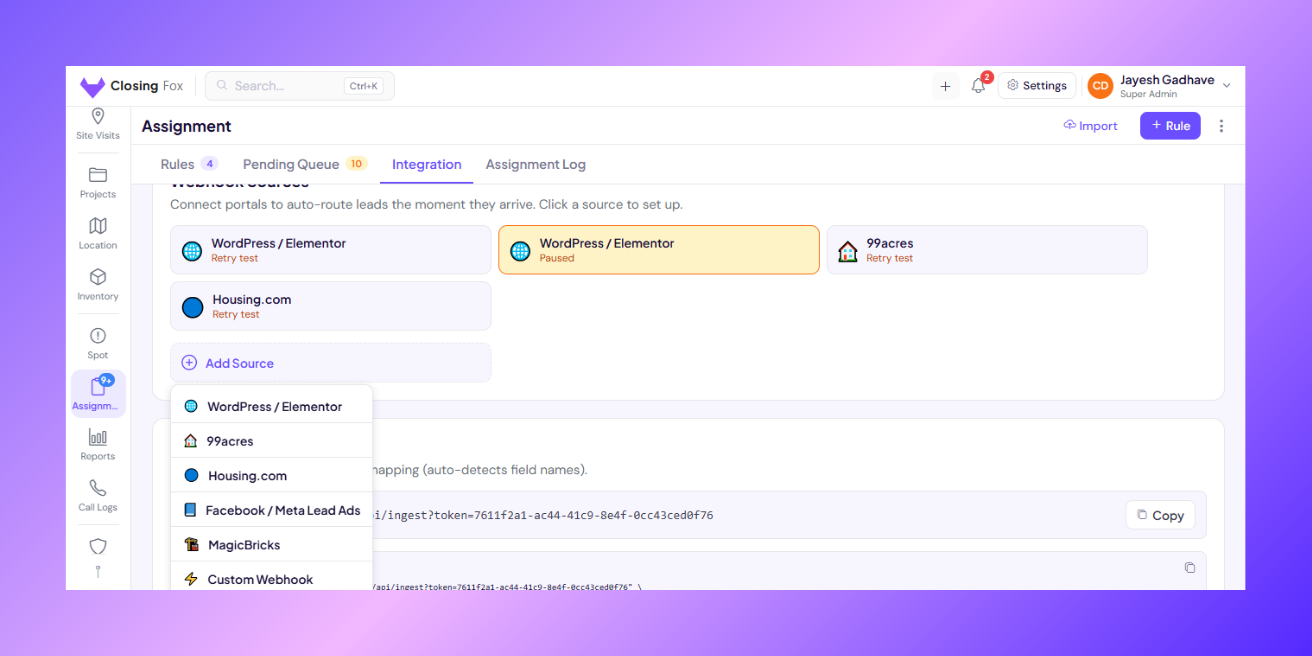
Step 1: Open Assignment in ClosingFox. Tap the Integration tab at the top. You’ll see Webhook Sources. Step 2: Tap + Add Source. Pick your portal (99acres, Housing, or MagicBricks). Give it a name like “99acres — Mumbai”. Step 3: Copy the link that appears. This is your unique link. Step 4: Open your portal’s admin panel. Paste the link here:| Portal | Where to paste |
|---|---|
| 99acres | Seller Dashboard → Lead Settings → API/Webhook |
| Housing.com | Builder Dashboard → Settings → Lead Integration → Webhook |
| MagicBricks | Builder Dashboard → Settings → Lead API/Webhook |
Connect Facebook / Meta Lead Ads
- Open Assignment → Webhook Sources
- Tap Facebook/Meta
- Tap Connect with Facebook and log in
- Pick the Page running your ads
- Choose your lead form and activate
Connect WordPress / Elementor
- In ClosingFox, add a source → pick WordPress/Elementor → copy the link
- In Elementor, edit your form → Actions After Submit → add Webhook → paste the link
- Submit a test form on your website. The lead appears in ClosingFox.
Connect any other source
Have a landing page, another CRM, or a custom form? Your developer can send leads using this format:
POST https://app.closingfox.com/api/ingest?token={your-token} { "name": "Rahul Sharma", "phone": "+91 99999 00001", "source": "Website" }Only name is required. Everything else is optional.
See all supported fields
| Field | What it is | Example |
|---|---|---|
| name | Lead’s name (required) | Rahul Sharma |
| phone | Phone number | +91 99999 00001 |
| rahul@example.com | ||
| source | Where they came from | Website, Google Ads |
| project | Interested project | Seaview Towers |
| location | City or area | Andheri West |
| config | Unit type | 2 BHK |
| budget | Budget range | 80L – 1Cr |
What happens when a lead arrives?
- Duplicate check — same phone number? It’s flagged, not duplicated.
- Auto-assignment — if you have rules set up, the lead goes to the right person instantly.
- Shows up everywhere — Dashboard, Kanban board, Leads list — all updated in real-time.
Common questions
Can I connect multiple portals?
Yes. Add one source per portal. They all work at the same time.
How fast do leads arrive?
Instantly — under 2 seconds from the moment the portal sends it.
Can I pause a portal without deleting it?
Yes. Pause anytime, resume anytime.
Is there a limit?
60 leads per minute. More than enough for any portal.