
Connect 99acres, Housing.com, or MagicBricks to ClosingFox in under 10 minutes. Every lead from the portal flows in automatically — no manual entry, no missed leads, no delays.
> Business Impact: Teams using auto lead capture respond 12x faster than teams entering leads by hand. Calling within 5 minutes makes you 21x more likely to convert. Manual entry wastes ~2 hours/day for a 50-lead team. That’s ₹25,000/month gone — just on typing.
Before you start
You need two things:
- A ClosingFox account with admin access (you’re the owner or have been given admin rights)
- A seller/builder account on the portal (99acres, Housing.com, or MagicBricks)
That’s it. No coding. No developer needed. No extra software.
The big picture (how it works)
Here’s what you’re going to do — in plain language:
- Get your unique link from ClosingFox
- Share this link with your portal’s account manager (or paste it yourself)
- They send a test lead to check the connection
- ClosingFox catches it automatically — you confirm the fields look right
- Activate — you’re live
- Create an assignment rule so leads go to the right salesperson based on location or project
Let’s do each step.
Step 1: Get your unique webhook link
- Open ClosingFox on web or mobile
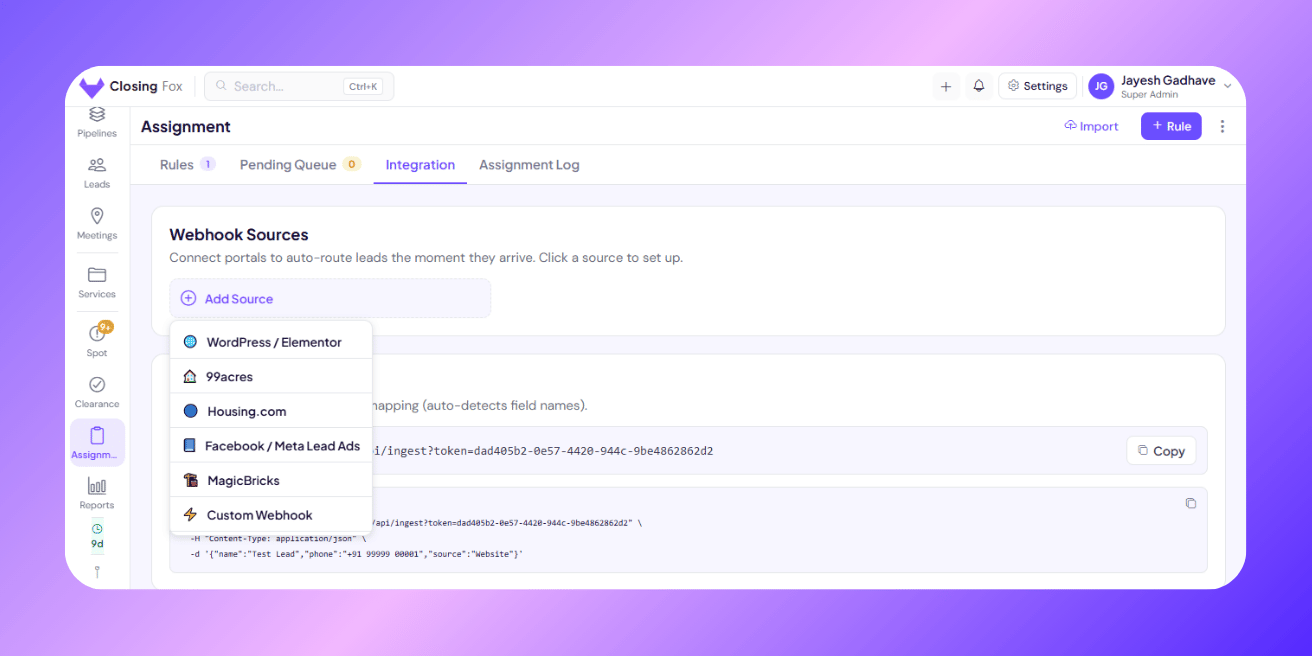
- Go to Assignment (in the sidebar or bottom menu)
- Tap the Integration tab at the top
- Tap + Add Source
- Pick your portal:
- 99acres
- Housing.com
- MagicBricks
- Give it a name — something you’ll recognise later, like:
- “99acres — Mumbai”
- “Housing — Pune”
- “MagicBricks — All Cities”
- ClosingFox shows you a unique link. It looks like this:
https://api.closingfox.com/api/ingest?token=abc123&src=xyz456Copy this link. You’ll need it in the next step.
> Important: This link is unique to your organisation. Don’t share it publicly — anyone with this link can send leads to your CRM.
Step 2: Share the link with your portal
Now paste this link into the portal. Here’s where to find the setting on each one:
For 99acres
- Log in to your 99acres Seller Dashboard
- Go to Settings (or ask your 99acres account manager)
- Find Lead API / Webhook Integration
- Paste your ClosingFox link in the webhook URL field
- Save
> Can’t find the setting? WhatsApp or email your 99acres account manager and say: “I want to set up webhook integration for my leads. Please paste this URL in my lead API settings:” — then send them the link. They do this regularly and will set it up for you.
For Housing.com
- Log in to your Housing.com Builder Dashboard
- Go to Settings → Lead Integration
- Select Webhook as the method
- Paste your ClosingFox link
- Save
> Can’t find it? Contact your Housing.com account manager and send them the link with this message: “Please configure this webhook URL for my lead integration. All new leads should POST to this URL.”
For MagicBricks
- Log in to your MagicBricks Dashboard
- Go to Settings → Lead API / Webhook
- Paste your ClosingFox link
- Save
> Can’t find it? Send your MagicBricks account manager the link: “Hi, please set up webhook integration for my leads using this URL.” They’ll configure it from their end.
Step 3: Send a test lead
- Go back to ClosingFox → Assignment → Integration
- Tap on the source you just created
- Tap “Start Listening for Test”
- Now go to the portal and send a test lead:
- Most portals have a “Send Test Lead” button in their webhook settings
- Or ask your account manager to send a test
- Or submit a dummy enquiry on your own listing
- Come back to ClosingFox — within a few seconds, you’ll see: “Test received!”
> Not seeing the test? Wait 10 seconds and refresh. If still nothing, check that the link was pasted correctly (no extra spaces or missing characters). If the portal says “Webhook failed” — double-check the full link.
Step 4: Match the fields
After the test lead arrives, ClosingFox shows you a table. This is called field mapping — it just means “tell us which field is which.”
You’ll see something like:
| What the portal sent | Sample value | What it means in ClosingFox |
|---|---|---|
| applicant_name | Rahul Sharma | → Name |
| phone_number | +91 98765 43210 | → Phone |
| rahul@gmail.com | ||
| property_type | 2 BHK Apartment | → Project |
| city | Mumbai | → Location |
| budget_range | 80L – 1.2Cr | → Budget |
Good news: ClosingFox auto-detects most fields. You usually just need to confirm — not change anything.
If a field isn’t matched, just pick the right one from the dropdown. Skip any fields you don’t need.
Set the Lead Source label
Under “Lead Source”, type the portal name: 99acres, Housing.com, or MagicBricks.
Every lead from this portal will be tagged with this label — so you always know where it came from.
Step 5: Activate
Tap Activate. The status turns green: Active.
That’s it — the portal is connected. Every new lead from this portal now arrives in ClosingFox automatically, in under 2 seconds.
Step 6: Create assignment rules (so leads go to the right person)
Right now, incoming leads land in the Pending queue. To auto-assign them to your salespeople:
- Go to Assignment → Rules tab
- Tap + New Rule
- Give it a name: e.g., “99acres Mumbai — Rahul”
Add conditions (optional but recommended)
Conditions let you route leads to the right person based on what the lead is about.
Example 1: Route by portal
- Field: Source
- Operator: contains
- Value: 99acres
→ All 99acres leads go to this rule.
Example 2: Route by location
- Field: Location
- Operator: equals
- Value: Mumbai
→ Only Mumbai leads go to this rule.
Example 3: Route by project
- Field: Project
- Operator: contains
- Value: Seaview Towers
→ Only leads asking about Seaview Towers go to this rule.
You can combine conditions. For example: Source = 99acres AND Location = Pune → assign to your Pune team.
Pick who gets the leads
- Under Assign to, pick one or more salespeople
- If you pick multiple people, leads rotate automatically (round-robin) — everyone gets a fair share
- Pick the Pipeline where these leads should go
- Pick the Starting Stage (e.g., “New Inquiry”)
- Tap Save
> Pro tip: Create separate rules for each portal + location combo. Example: “99acres Mumbai”, “99acres Pune”, “Housing Mumbai”. This gives you full control over who handles what.
You’re live! What happens now?
When a real lead comes in from the portal, here’s what happens automatically:
- Lead arrives — ClosingFox catches it in under 2 seconds
- Duplicate check — if same phone number already exists, it’s flagged (not duplicated)
- Rule matching — ClosingFox checks your rules. First matching rule wins.
- Auto-assignment — the lead is created, placed in the right pipeline and stage, and assigned to the salesperson
- Push notification — the salesperson gets a notification on their phone: “New lead: Rahul Sharma — Seaview Towers — 99acres”
- Everywhere updated — Dashboard, Kanban, Leads list — all show the new lead instantly
> No matching rule? The lead stays in the Pending queue. You can assign it manually, or create a catch-all rule.
Connecting multiple portals
You can connect all three portals at the same time. Just repeat Steps 1-5 for each one:
- Add a source for 99acres → get link → share with 99acres
- Add a source for Housing.com → get link → share with Housing
- Add a source for MagicBricks → get link → share with MagicBricks
Each portal gets its own link, its own source label, and its own rules. They all work independently.
Common questions
I shared the link but no test lead is arriving?
Check these things:
- Make sure you copied the full link — no missing characters at the end
- Make sure the portal actually sent the test (check with your account manager)
- Make sure you tapped “Start Listening for Test” in ClosingFox before sending
- Wait 10-15 seconds and refresh. Some portals have a slight delay.
My account manager says they need a “POST URL” — is that the same thing?
Yes. Your ClosingFox webhook link IS a POST URL. Just send them the link. They’ll know what to do.
Will I get duplicate leads if someone enquires twice?
No. ClosingFox checks the phone number. If the same number already exists in your pending queue, it flags it instead of creating a duplicate.
Can I pause a portal without deleting it?
Yes. Open the source in Integration tab, tap Pause. Leads from that portal will be rejected until you resume. Your link stays the same — no need to reconfigure the portal.
What if the portal sends fields I don’t need (like “ad ID” or “campaign code”)?
Just skip them during field mapping. ClosingFox saves the full raw data anyway — you can always map them later.
Is there a lead limit?
ClosingFox handles 60 leads per minute per organisation. That’s more than enough for any portal. Your plan’s total lead limit still applies.
Can I connect the same portal twice (e.g., 99acres for two different projects)?
Yes. Create two separate sources — “99acres Mumbai” and “99acres Pune”. Each gets its own link. Ask your portal manager to route different listings to different links.
What message should I send my account manager?
Copy-paste this:
“Hi, I want to set up lead webhook integration. Please configure this URL as my lead API endpoint. All new leads should be sent as a POST request to this URL: [paste your link here]. Please also send a test lead so I can verify.”
Quick summary
| Step | Where | Time |
|---|---|---|
| 1. Get link | ClosingFox → Assignment → Integration → + Add Source | 1 min |
| 2. Share link | Portal settings or account manager | 2 min |
| 3. Test lead | Portal sends test → ClosingFox catches it | 1 min |
| 4. Map fields | ClosingFox — confirm which field is what | 2 min |
| 5. Activate | Tap Activate in ClosingFox | 10 sec |
| 6. Create rules | Assignment → Rules → + New Rule | 3 min |
Total time: ~10 minutes per portal.
Next Steps
- Assignment rules deep dive — advanced conditions, round-robin, escalation
- Set up your pipeline — define your sales stages
- Enable auto call detection — log every call without manual entry
- General portal connection guide — Facebook, Elementor, custom webhooks
Need help? WhatsApp us or email mail@closingfox.com. We’ll walk you through it in 5 minutes.