
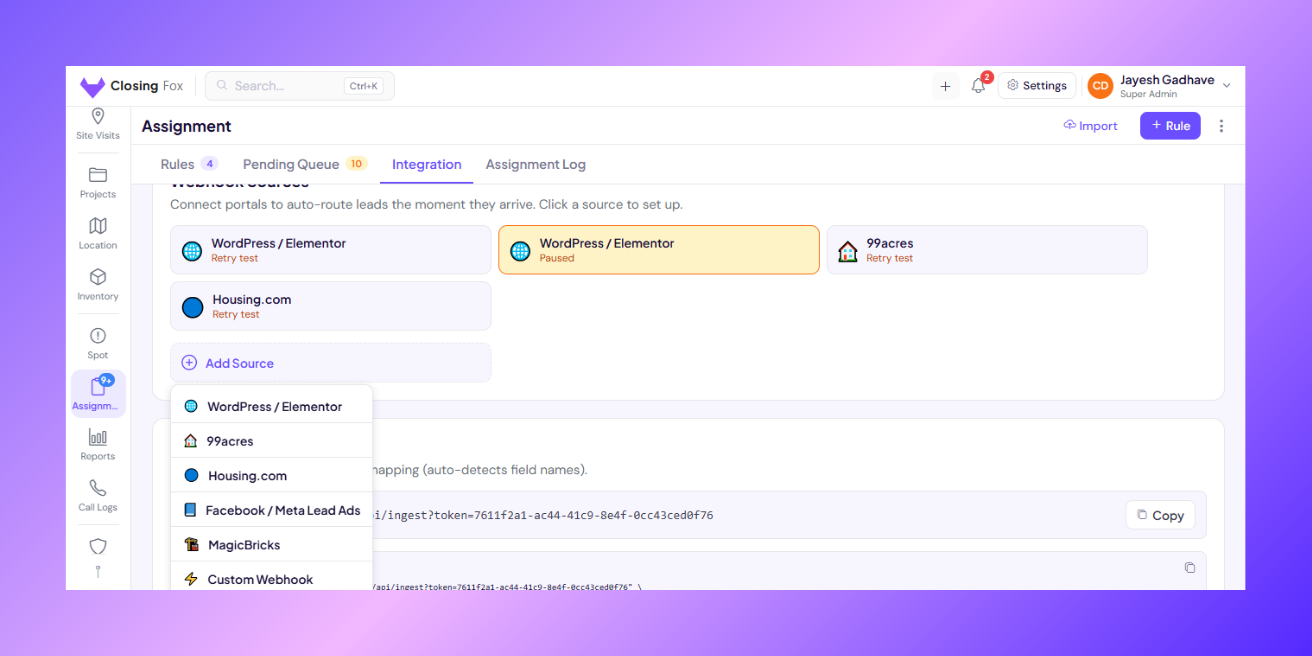
Connect your portals once. Every new lead flows into ClosingFox automatically — no copy-paste, no manual entry.
> Business Impact: Teams using auto lead capture respond 12x faster than teams entering leads manually. For a 50-lead/day team, this saves ~2 hours of daily data entry and eliminates missed leads entirely. Industry data shows that calling a lead within 5 minutes makes you 21x more likely to qualify them — auto-capture makes that possible.
Which portals can I connect?
- 99acres
- Housing.com
- MagicBricks
- Facebook / Meta Lead Ads
- WordPress / Elementor forms
- Any other source (custom webhook)
Connect 99acres, Housing, or MagicBricks
All three portals follow the same steps.
Step 1: Open Assignment in ClosingFox. Tap the Integration tab at the top. You’ll see Webhook Sources.
Step 2: Tap + Add Source. Pick your portal (99acres, Housing, or MagicBricks). Give it a name like “99acres — Mumbai”.
Step 3: Copy the link that appears. This is your unique link.
Step 4: Open your portal’s admin panel. Paste the link here:
| Portal | Where to paste |
|---|---|
| 99acres | Seller Dashboard → Lead Settings → API/Webhook |
| Housing.com | Builder Dashboard → Settings → Lead Integration → Webhook |
| MagicBricks | Builder Dashboard → Settings → Lead API/Webhook |
Step 5: Click “Send Test Lead” in the portal. ClosingFox will catch it automatically.
Step 6: Match the fields. ClosingFox shows you what the portal sent. Just confirm which field is Name, Phone, Email, etc.
> Most fields are matched automatically — you may not need to change anything.
Step 7: Tap Activate. Done! Every new lead from this portal now arrives in ClosingFox instantly.
Connect Facebook / Meta Lead Ads
- Open Assignment → Webhook Sources
- Tap Facebook/Meta
- Tap Connect with Facebook and log in
- Pick the Page running your ads
- Choose your lead form and activate
> You need a Facebook Business Page with active lead ads. Personal profiles won’t work.
Connect WordPress / Elementor
- In ClosingFox, add a source → pick WordPress/Elementor → copy the link
- In Elementor, edit your form → Actions After Submit → add Webhook → paste the link
- Submit a test form on your website. The lead appears in ClosingFox.
Connect any other source
Have a landing page, another CRM, or a custom form? Your developer can send leads using this format:
POST https://app.closingfox.com/api/ingest?token={your-token}

{
  "name": "Rahul Sharma",
  "phone": "+91 99999 00001",
  "source": "Website"
}
Only name is required. Everything else is optional.
See all supported fields
| Field | What it is | Example |
|---|---|---|
| name | Lead’s name (required) | Rahul Sharma |
| phone | Phone number | +91 99999 00001 |
| rahul@example.com | ||
| source | Where they came from | Website, Google Ads |
| project | Interested project | Seaview Towers |
| location | City or area | Andheri West |
| config | Unit type | 2 BHK |
| budget | Budget range | 80L – 1Cr |
What happens when a lead arrives?
- Duplicate check — same phone number? It’s flagged, not duplicated.
- Auto-assignment — if you have rules set up, the lead goes to the right person instantly.
- Shows up everywhere — Dashboard, Kanban board, Leads list — all updated in real-time.
> No rules set up yet? Leads go to the Pending queue. You can assign them manually.
Common questions
Can I connect multiple portals?
Yes. Add one source per portal. They all work at the same time.
How fast do leads arrive?
Instantly — under 2 seconds from the moment the portal sends it.
Can I pause a portal without deleting it?
Yes. Pause anytime, resume anytime.
Is there a limit?
60 leads per minute. More than enough for any portal.
Next Steps
- Set up assignment rules — auto-assign incoming leads to your team
- Set up your pipeline — define stages for your sales process
- Enable auto call detection — log every call without manual entry
—
Need help setting this up? WhatsApp us or email mail@closingfox.com. We’ll walk you through it.